Customize your Face Tracking Addon
The Addon is ready to use after installation. If the eyelids leave a gap or a custom face shape clips when the mouth opens, you can adjust how the avatar responds to tracking.
Before you begin
Most adjustments are in Face Tracking Settings.
- In the Hierarchy, expand Face Tracking under your avatar and select Face Tracking Settings.
- Click Preview in the Inspector to see the tracked shapes in the Scene view.
- Use the pose sliders, such as Eye Closed and Jaw Open, to pose the face before adjusting the settings.
- Click End Preview when you finish.
 Hierarchy


 All

 Avatars
 Salt
 ArmatureBodyKemono_EarFace TrackingFace Tracking SettingsEye TrackingMouth TrackingFace Tracking Meshes
 Face Tracking Settings


 Eye Tracking
 Mouth Tracking
Eyelids leave a gap or overlap
Eye Weight sets how far the eyelids move at full closure. The range is 0 to 1.5 and the default is 1. Here is Salt at full closure.
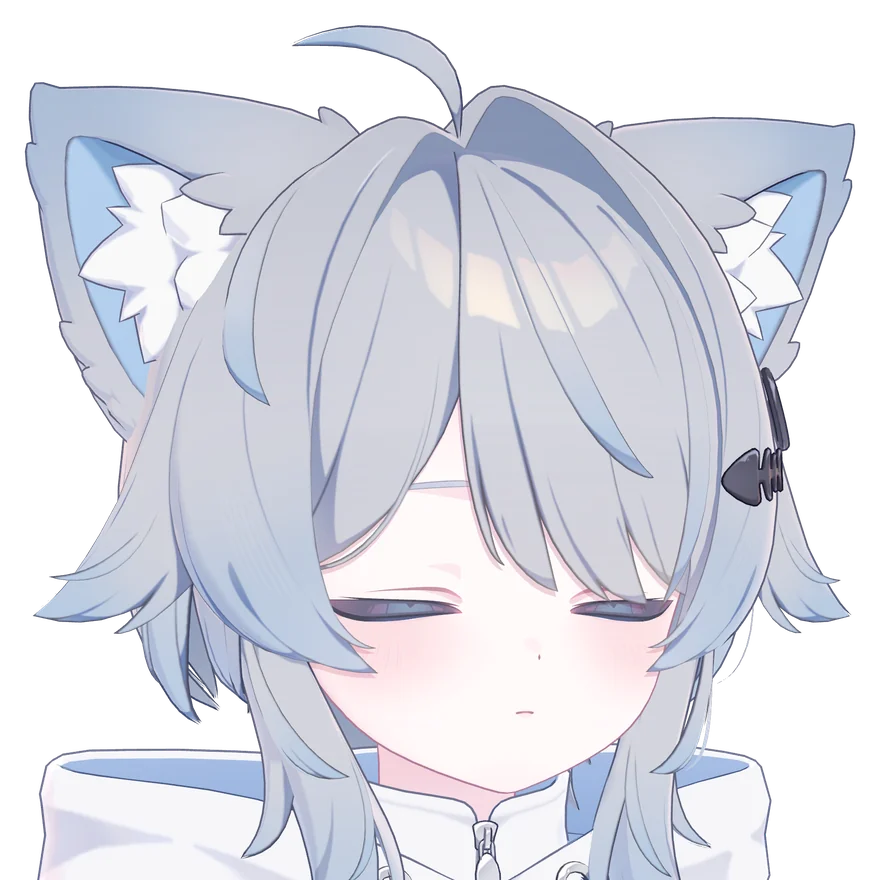 Eye Tracking
| What you see | Adjustment |
|---|---|
| A gap between the eyelids | Increase Eye Weight, for example to 1.1. |
| Eyelids overlap on a smaller custom eye shape | Lower the weight until the lids just meet. |
Too much or too little jaw movement
Adjust Jaw Strength. Here is Salt with the mouth fully open.
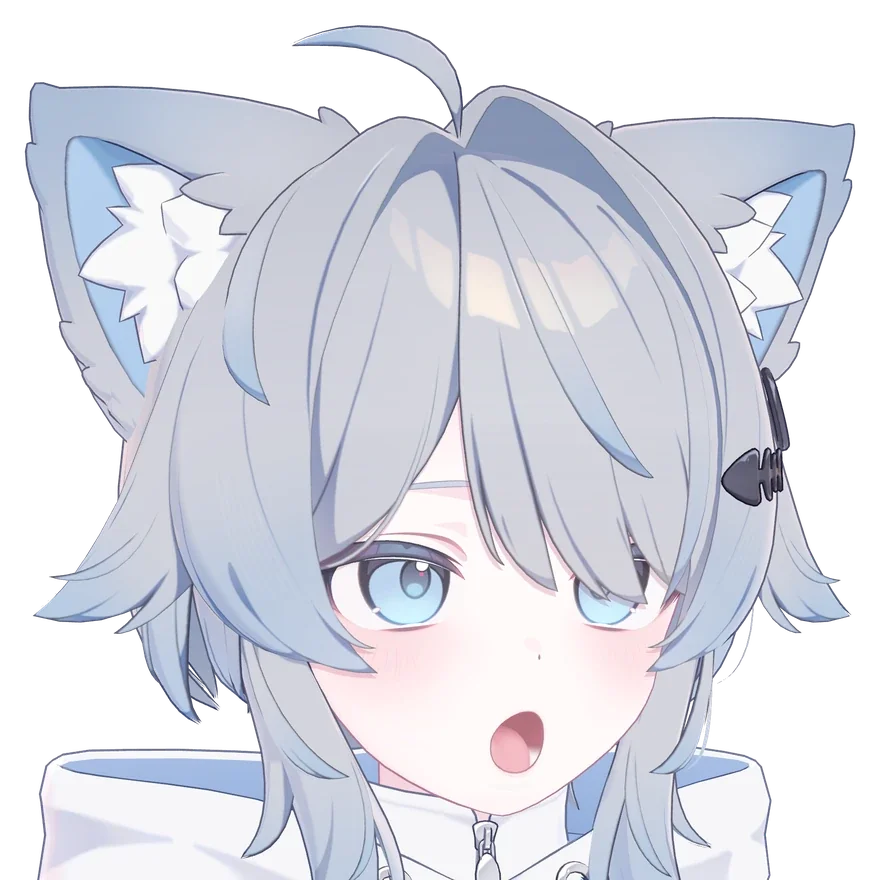 Mouth Tracking
| Value | Result |
|---|---|
| 0 | The mouth opens while the jaw stays still. |
| 1 | The jaw drops as the mouth opens. Default. |
| Between 0 and 1 | Partial jaw movement. |
How it works
The Addon splits JawOpen into MouthOpen* for the mouth opening and JawDrop* for the jaw. Jaw Strength scales the contribution of JawDrop*; MouthOpen* always receives the full tracking value.
Custom shapes clip when the eyes close or the mouth opens
Tracking shapes are authored for the original face. Applying them over custom eye or mouth Blendshapes can cause clipping. Reset brings those custom shapes closer to their defaults as the tracked movement grows stronger.
Each facial region has a group name + Reset slider in the Inspector. Salt uses these groups:
| Slider | Region | Triggering movements |
|---|---|---|
| Eyelids Upper Reset | Upper eyelid | Closing or widening the eyes |
| Eyelids Lower Reset | Lower eyelid | Closing or widening the eyes |
| Mouth Reset | Mouth shape | Opening the mouth, sticking out the tongue, puckering, baring teeth, smiling or frowning |
Group names and counts vary by Addon.
To adjust a group:
- Click Preview and pose the face. For fully closed eyes, set Eye Closed to 1.
- Read the input name below the Reset label. EyeClosed edits the reset for closing the eyes. Set Eye Wide to 1 and the label changes to EyeWide, so you can edit the reset for widening the eyes. Preview means the slider cannot be adjusted at the current pose.
- Raise the slider until clipping disappears. At 1 the custom shape returns fully to its default for this pose. Lower values preserve more of the custom face.
Eye TrackingMouth TrackingStart low
Increase Reset just enough to stop the clipping while preserving the custom shape.
How it works
Each expression has its own Reset weight. Multiply the strength of the expression (0 to 1) by that weight to get the current reset amount.
Reset amount = expression strength × Reset weightWith a closed-eye weight of 0.6, half closure gives 30% reset and full closure gives 60%.
Automatic eye movement without eye tracking
VRChat moves the eyes automatically when eye tracking is unavailable. The Addon reduces the movement weight to 0.2 by default for a steadier gaze.
To change the amount:
- Select Eye Tracking under Face Tracking in the Hierarchy.
- Find the Face Tracking Blend Set component whose Blendshape Set Name is Eye Look.
- In States, find Automatic eye movement and edit its Weight.
HierarchyAllAvatarsSaltArmatureBodyKemono_EarFace TrackingFace Tracking SettingsEye TrackingMouth TrackingFace Tracking Meshes
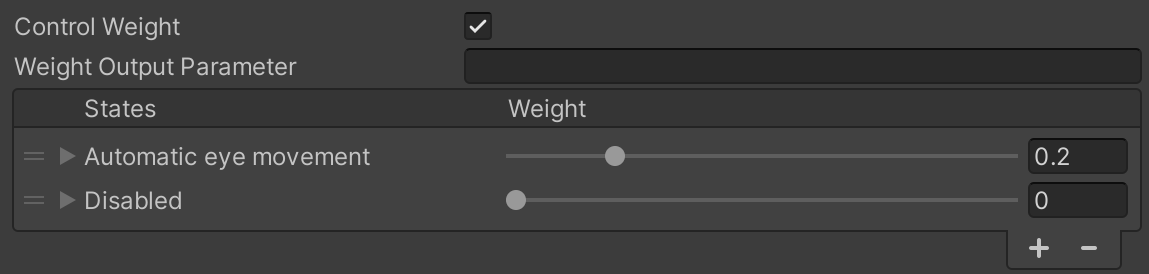
| Weight | Result |
|---|---|
| 0.2 | Small movements. Default. |
| 1 | Full VRChat automatic eye movement. |
| 0 | No automatic eye movement. |
When an eye tracker supplies gaze data, the eyes follow it regardless of this value.
Model ソルト -Salt- / オリジナル3Dモデル © こまど / komado(あまとうさぎ)